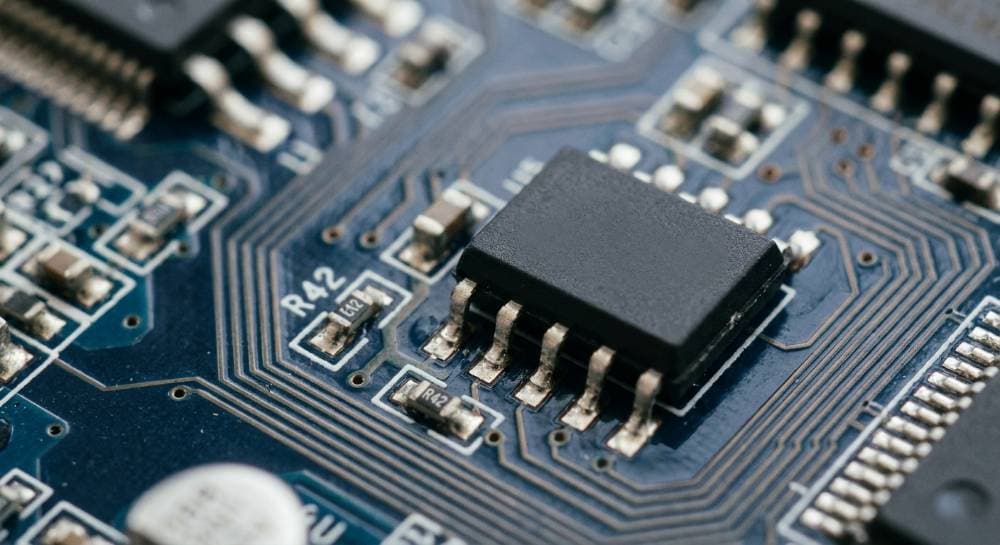
BIOS Chip: Hardware BIOS But It's the First Chip Started When a Computer Starts
Introduction
Every computer like a desktop, laptop, workstation or server relies on an utterly small but crucial component called the BIOS chip. While most users are focused on processors, memory, graphics cards and storage devices - without the BIOS chip there'll be no way for all these components to work together properly. A computer would not know where to begin or understand its hardware devices or even find an operating system, without it.
BIOS stands for Basic Input/Output System. It was firmware saved on a discrete chip on the motherboard.
Firmware: This type of software is written into the memory of hardware component.
The BIOS chip is the first software that runs when a computer starts. Basically, it runs hardware checks, initializes the basic components and readies the system so that the OS can be loaded from storage devices such as SSDs or Hard Drives.
This article will detail the BIOS chip, covering its history, structure and functions as well the startup process, settings available to users, advantages & limitations of using it, ways to troubleshoot issues occurring with outdated BIOS firmware and also how it has evolved into today's UEFI firmware.
History of the BIOS Chip
BIOS is developed in late 1970s and became very popular on IBM personal computers in the early 1980s. BIOS was developed by IBM as a way to decouple the operating system from hardware specific instructions.
Operating systems had been written with machine-specific code because before the advent of BIOS, they needed to talk directly with hardware via custom instructions. This posed a problem for software development, since programs had to be rewritten for different models of computers.
BIOS introduced a standard interface between hardware and the operating system. This meant that software developers were now able to write applications that could talk to the BIOS services, instead of forking out talking directly with hardware devices.
BIOS steadily progressed its way up the personal computer space to take advantage of new technology like:
- Large hard drives
- USB devices
- Quicker processors
- Enhanced memory management
BIOS did not change much in its design and functionality for decades. These older BIOS formats eventually gave way to UEFI (Unified Extensible Firmware Interface), as modern hardware grew more complex, replacing legacy BIOS in the majority of today's machines.
Although this changed, computer users still tend to informally refer to motherboard firmware as "BIOS".
What Is a BIOS Chip?
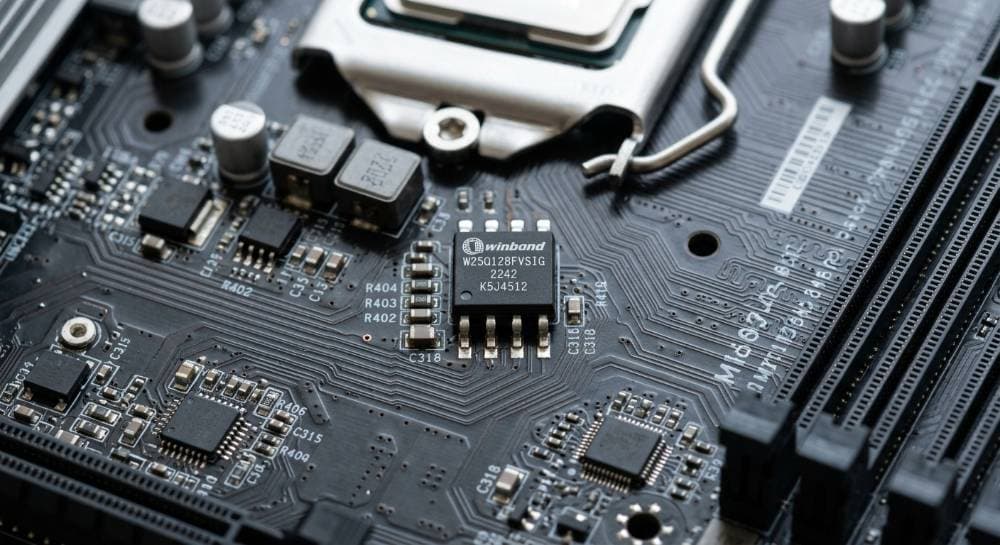
The BIOS chip is a tiny integrated circuit soldered onto the motherboard to store the firmware for the BIOS. Even when the computer gets turned off, the programming in that chip stays.
Flash memory technology is the most commonly used type of storage that holds firmware in this day and age in modern BIOS chips, allowing manufacturers and users to update it whenever needed.
The BIOS chip typically contains:
- Startup instructions for the computer
- Hardware initialization routines
- Configuration settings
- Diagnostic testing procedures
- Boot device management instructions
- Security features and passwords
Unlike the operating system, which only functions after the BIOS chip starts running (which should be the case), the BIOS chip can operate independently. Since this is the component that starts up the computer, a tiny problem with the BIOS chip can lead to system failure.
BIOS Chip — What is its Physical Location?
The BIOS chip is built right in the motherboard. It is usually:
- A small rectangular integrated circuit.
- Positioned near the CMOS battery.
- Marked with the manufacturer's branding or firmware data.
- Soldered directly onto the motherboard, or in a socket.
Some new motherboards have two BIOS chips (so-called Dual BIOS). Essentially what this design does is assure that in the event of a BIOS update gone wrong, you have a backup BIOS to restore functionality. Gigabyte (and some enterprise motherboard vendors) also employ Dual BIOS technology in many motherboards.
Primary Responsibilities of the BIOS Chip
Functions of the BIOS chip at Startup and Operating time include:
1. Power-On Self-Test (POST)
The most important thing that a BIOS chip does is performing the Power-On Self-Test (POST). Before the operating system loads, POST checks components of essential hardware to ensure that they are functioning properly. Components tested include:
- Processor
- RAM
- Graphics card
- Keyboard
- Storage devices
- Motherboard controllers
- Cooling fans
In case of any fault, it generate beep codes or error messages and helps technician to identify the problem.
2. Hardware Initialization
Currently, BIOS initializes the hardware devices and gets it ready for use after successful completion of POST. Examples include:
- Activating memory modules
- Detecting storage drives
- Initializing USB ports
- Configuring PCI devices
- Enabling onboard audio
- Starting network adapters
If there is no hardware initialization the os would not be able to interfacing with system components.
3. Boot Process Management
The BIOS chip specifies which storage device has the operating system on it and regulates the boot order. Typical boot devices include:
- NVMe SSD
- SATA SSD
- Hard disk drive
- USB flash drive
- DVD drive
- Network boot server
As per the configured boot priority list, BIOS looks for bootable devices. As soon as a valid boot loader is found it will pass control onto the our OS.
4. System Configuration Storage
BIOS keeps configuration settings to which hardware needs to behave like. Examples include:
- Date and time
- CPU settings
- Memory settings
- Boot order
- Fan profiles
- Security options
- Virtualization support
CMOS memory stores these settings, and the motherboard battery maintains them.
5. Hardware Communication Services
The standard BIOS gives basic input and output services that let software communicate with hardware devices. Examples include:
- Keyboard input
- Display output
- Disk access
- Serial communication
Modern OSes rely on their own drivers but the BIOS services are still needed during the very early boot.
Understanding the Boot Process
The BIOS chip controls the startup process from beginning to end until control passes into the operating system. This process generally goes as follows:
- Step 1: Power Button Pressed
Upon pressing the power button, the power supply directs electricity to components on the motherboard. The CPU then performs a reset and starts executing from a fixed memory address that points to the BIOS firmware. - Step 2: BIOS Execution Begins
The CPU executes the BIOS instructions located within the BIOS chip. So the BIOS is the first piece of software to run in the System. - Step 3: POST Execution
You are familiar with the BIOS that does POST for checking essential hardware in working mode. Failures during POST may generate beep codes, diagnostic LEDs, error messages, or POST code displays. - Step 4: Hardware Initialization
When the system boots, the BIOS detects and initializes other connected devices like RAM modules, graphics card, SSD or HDD, USB devices, and expansion cards. - Step 5: Boot Device Detection
BIOS looks at the boot order for a bootable device. - Step 6: Boot Loader Execution
The BIOS loads the boot loader from the relevant storage device (e.g., Windows Boot Manager, GRUB for Linux, or other operating system loaders). - Step 7: Operating System Startup
Once the computer is actually properly booted, the system kernel loads into memory and takes control of it. From this point forward, BIOS activity is almost nonexistent.
CMOS and BIOS Relationship
Most of the users mistake BIOS with CMOS but they are different components.
BIOS:
- Firmware that is stored directly on the BIOS chip.
- Contains startup instructions.
- Stored permanently in flash memory.
CMOS:
- Small memory chip (typically Flash) containing the BIOS settings.
- Powered by the CMOS battery.
- Stores user configurations.
Alternatively, BIOS settings will automatically reset if the CMOS battery dies.
Accessing BIOS Setup Utility
During a boot up users can enter the BIOS setup utility by pressing certain keys. Common keys include:
- Delete
- F2
- F10
- F12
- Esc
The specific key is determined by the motherboard manufacturer. The BIOS setup utility allows users to change hardware settings without going into the operating system.
Common BIOS Settings
- Boot Priority: Allows users to select the sequence to search for bootable Operating Systems on attached storage devices.
- Date and Time: To maintain system clock and calendar information, BIOS stores the data.
- CPU Configuration: Options may include clock speed, turbo boost, hyper-threading, and power management.
- Memory Configuration: Users can adjust memory frequency, voltage, timing settings, and XMP profiles.
- Security Settings: Security options often include BIOS password, administrator password, Secure Boot, and TPM configuration.
- Virtualization Technology: VT (virtualization technology) support allows software like VMware, Hyper-V and VirtualBox to take advantage of hardware acceleration (e.g., Intel VT-x, AMD-V).
BIOS Manufacturers
Many companies created BIOS firmware for personal computers. Major BIOS vendors include:
- AMI: American Megatrends Incorporated is a BIOS manufacturer with one of the largest global shares. A popular version of BIOS for desktop motherboards and servers is AMI BIOS.
- Phoenix Technologies: Phoenix BIOS gained popularity in enterprise environments and with laptop systems.
- Award Software: BIOS from Award was very popular from the late 1980s to about the early mid-2000s. Afterwards, Award was incorporated into Phoenix Technologies.
- Insyde Software: Most of the laptops and ports based devices come with Insyde BIOS solutions.
BIOS Updates
Next up, sometimes manufacturers will release BIOS updates to give your systems functioning improvements. A BIOS update may provide:
- CPU support improvements
- Memory compatibility fixes
- Security patches
- Stability enhancements
- Bug fixes
- Performance optimizations
Flashing the BIOS is the term used to update any types of BIOS.
Reasons for Updating BIOS
There are various reasons as to why users may want to update BIOS for:
- Support for New Processors: New microcode for a new processor.
- Improved Stability: Manufacturers could have solved system crashes or compatible issues.
- Security Improvements: Exploit these BIOS vulnerabilities to attack systems. Updates provide significant security patches more often than you realize.
- New Hardware Support: Updates may improve compatibility with SSDs, graphics cards, RAM modules, and expansion cards.
Risks of BIOS Updates
However, despite the benefits BIOS updates bring, they aren't without risks. Possible problems include:
- Power failure during update
- Corrupted firmware
- Incorrect BIOS version installation
- System startup failure
However, making a mistake and failing to run the BIOS update may brick your motherboard until you go through recovery procedures.
BIOS Recovery Methods
Most modern motherboards have options for recovery. Common methods include:
- Dual BIOS: The backup BIOS rewrites the corrupted firmware.
- BIOS Flashback: There are motherboards that will let you update the BIOS without a CPU or memory. Users just attach power and plug in a USB with the firmware on it.
- Recovery Jumper: Some motherboards have a recovery jumper that puts the firmware in an emergency restore state.
BIOS Beep Codes
This is where beep codes come in to help technicians narrow down startup issues. Different manufacturers use different patterns. Technicians tend to resort to BIOS beep codes when a display output is unavailable.
| Beep Pattern | Possible Problem |
|---|---|
| 1 Short Beep | Successful POST |
| Continuous Beeps | Memory Failure |
| 1 Long, 2 Short | Graphics Error |
| Repeating Short Beeps | Power Problem |
| No Beep | Motherboard or CPU Failure |
BIOS Security Features
Today, many layers of security exist in our BIOS firmware.
- BIOS Password: Protect firmware settings from unauthorized access.
- Secure Boot: Only Trusted Operating System Are able to boot. It prevents rootkits and boot-level malware.
- TPM Integration: High-end encryption technologies (such as BitLocker) are supported by Trusted Platform Module.
- Boot Device Restrictions: USB booting can be disabled by administrators to enforce security constraints.
BIOS Chip Failure Symptoms & Causes
Symptoms of a Damaged BIOS Chip
- No display output
- Continuous reboot loops
- Failure to detect hardware
- Missing BIOS screen
- POST failures
- Multiple beep codes
- Frozen startup sequence
These symptoms may also be indicative of motherboard or memory failures, making accurate diagnosis necessary.
Causes of BIOS Corruption
- Interrupted BIOS updates
- Malware attacks
- Electrical surges
- Faulty motherboard components
- Defective BIOS chips
So a good UPS can minimize the chance that BIOS gets corrupted due to power outage events.
Replacing a BIOS Chip
A few BIOS chips are socketed, meaning you can take them out and swap them for another one. The process generally involves removing the old chip, programming a replacement chip, installing the new chip, and resetting CMOS settings. Several brand-new BIOS chips are straight soldered onto the motherboard, which makes replacement more difficult.
Traditional BIOS Limitations
There are various limitations of traditional BIOS technology:
- Limited Storage Capacity: BIOS is a small piece of firmware.
- Slow Startup: Older BIOS systems initialize in order, which increases time to boot.
- MBR Disk Limitation: Master Boot Record partitions are used with traditional BIOS, meaning the maximum disk size supported by it is about 2 TB.
- Limited User Interface: Most BIOS interfaces are text-only (you cannot even use the computer mouse there).
Introduction to UEFI
UEFI: Unified Extensible Firmware Interface was designed for BIOS limitations. UEFI provides:
- Faster startup times
- Mouse support
- Graphical interfaces
- Larger disk support
- Enhanced security
- Improved diagnostics
Most of the modern day computers come with UEFI and not legacy BIOS.
BIOS vs UEFI Comparison
| Feature | BIOS | UEFI |
|---|---|---|
| Interface | Text-based | Graphical |
| Storage Support | 2 TB Maximum | More than 2 TB |
| Boot Speed | Slower | Faster |
| Security | Limited | Secure Boot |
| Partition Style | MBR | GPT |
| Mouse Support | No | Yes |
Even so, many users still call UEFI firmware BIOS.
Server & Large-Scale Systems BIOS
Sophisticated BIOS features are critical to servers. Examples include:
- Remote management
- Redundant BIOS
- Hardware monitoring
- Power optimization
- Virtualization settings
Enterprise BIOS firmware typically integrates with management platforms like IPMI and BMC controllers.
Significance of BIOS for IT Experts
If you are an IT support technician, system administrator, or other IT professional (or even just a curious enthusiast), you're going to want to have a working knowledge of BIOS.
Knowledge of BIOS assists with:
- Troubleshooting boot issues
- Installing operating systems
- Configuring RAID arrays
- Updating firmware
- Diagnosing hardware failures
- Enabling virtualization
In fact, most hardware issues can be quickly diagnosed just by checking the BIOS settings and POST results.
BIOS and Hardware Troubleshooting
During troubleshooting technicians will often enter BIOS. Common checks include:
- Verifying RAM detection.
- Confirming SSD visibility.
- Checking CPU temperatures.
- Monitoring fan speeds.
- Reviewing voltage levels.
Such diagnostics play a very important role in saving valuable time while dealing with repairs.
Future of BIOS Technology
As long as hardware is advancing, firmware technology will also keep changing. Future developments may include:
- AI-assisted diagnostics
- Cloud firmware updates
- Improved hardware security
- Faster startup methods
- Better remote management
While conventional BIOS is slowly fading away though, firmware will still always be a vital part of computers.
Conclusion
BIOS chip is one of the most important components of any computer system. It is small in size yet it performs important functions to determine whether a computer can boot and interface with its hardware devices.
The BIOS chip serves as a point of contact between hardware and software during the boot process, from POST to fetching system components and writing system variables.
BIOS technology has changed a lot over the years, it led to the creation of UEFI firmware with greater performance, security and flexibility. Still, the idea behind it is the same: A computer must be able to turn on, check its hardware and boot OS.
For IT professionals, technician students, and computer enthusiasts who gain deeper understanding of the BIOS chip could help you with many tools for difficulty solving, upkeep, and setting.
You may not consider it daily when firing up your desktop, but every time any computer boots the BIOS chip does one of the most vital jobs in computing.