



In today's digital age, almost every aspect of our daily lives is connected to the internet. We communicate through email, log into online banking services, share updates on social media, save files to cloud storage, and collaborate on professional workloads online.
However, this constant connectivity exposes our devices to cybersecurity threats, including malware, ransomware, phishing scams, and unauthorized system access. When a device connects directly to the internet, it immediately becomes a potential target for hackers.
Firewall security is the most fundamental and vital network security layer designed to mitigate these vulnerabilities and secure computer systems.
What is a Firewall?
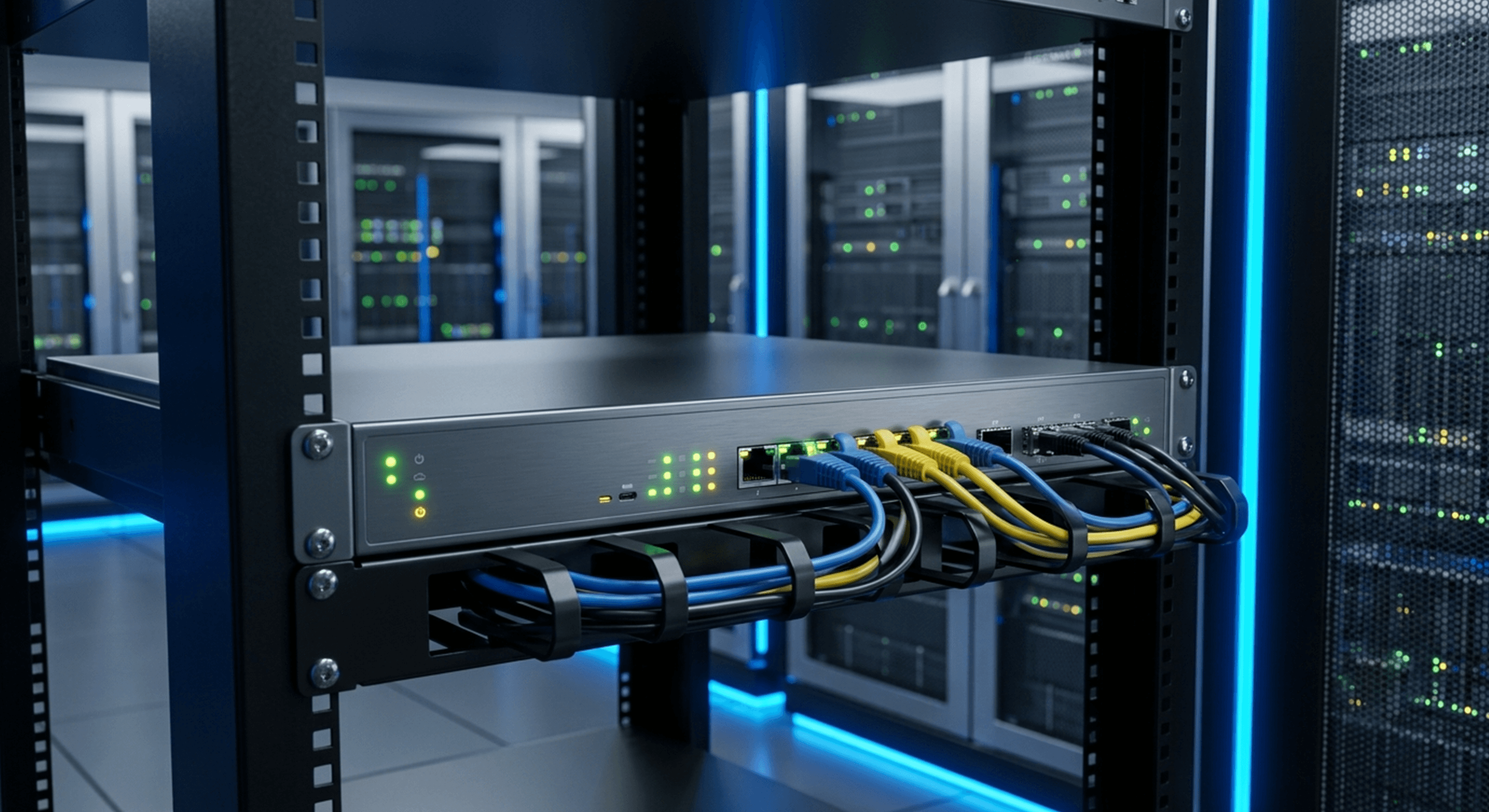
A firewall is a security system that acts as a protective barrier between the internet and a computer, server, or local network. It continuously inspects all incoming and outgoing network traffic, determining whether to allow or block it based on predefined security rules.
Think of a firewall as a security guard stationed at the entrance of a building. The guard checks the credentials of everyone trying to enter, allowing authorized guests in while turning away suspicious individuals. A network firewall operates on this exact principle, automatically keeping untrusted connections out of your system.
Why is a Firewall Necessary?
Many home users assume that because their computers do not store highly sensitive files or financial databases, they do not require active firewall protection. This is a common misconception.
Hackers do not always target individual systems for sensitive files. In many cases, they exploit unsecured systems to turn them into remote-controlled bots (botnets), using them to launch distributed denial-of-service (DDoS) attacks against larger targets. Additionally, unsecured systems are highly vulnerable to credential theft, ransomware, and identity theft.
An active firewall provides several key benefits:
- Blocks unauthorized remote access attempts.
- Detects and logs suspicious network connections.
- Prevents malware from communicating over the internet.
- Blocks port scans and reconnaissance efforts by hackers.
- Secures sensitive corporate and personal data.
- Enhances user privacy by regulating traffic.
Cybersecurity experts compare running a computer system without a firewall to leaving the front door of your house unlocked in a busy city.
How a Firewall Works
When you use the internet, data is transmitted in small chunks called packets. Whether you are loading a website, sending an email, or streaming a video, thousands of these data packets are continuously exchanged between your device and remote servers.
A firewall operates by analyzing each packet of data in real-time, verifying specific header details against its security policy rules:
- Source IP address (where the data packet originated).
- Destination IP address (where the data packet is going).
- Transport protocol (TCP, UDP, or ICMP).
- Port number (specific service target, e.g., Port 80 for HTTP).
- Connection state (is it part of an established, safe session?).
- Security policy alignment (does it comply with active rules?).
Based on this inspection, the firewall will execute one of several actions for the packet:
- Allow: Permiting the packet to pass through.
- Block / Drop: Silently discarding the packet.
- Reject: Discarding the packet and sending an error response to the sender.
- Log: Recording the packet details for future security audits.
Network Traffic and Filtering
Network traffic refers to all data traveling across computers, servers, routers, and connected devices. This traffic consists of both secure, authorized data and potentially malicious packets. To maintain network integrity, the firewall continuously monitors this flow.
For instance, if a remote computer attempts to send thousands of login requests to your system within a few seconds, the firewall flags this as a brute-force attack and automatically blocks the sender's IP address, safeguarding your system from intrusion.
Defending Against Key Cyber Threats
While a firewall alone is not a complete cybersecurity solution, it forms the first line of defense. It effectively mitigates a wide variety of common network threats, including:
- Unauthorized Remote Access
- Port Scanning and Reconnaissance
- Malware and Spyware Network Communication
- Botnet and Command-and-Control Connections
- Brute-Force Remote Login Attempts
- Network Vulnerability Exploits
- Worm and Virus Propagation
- Suspicious Background Application Traffic
Without a firewall, these threats can easily compromise a system, leading to data loss, hardware damage, or system lockouts.
First Line of Defense
Deploying a firewall is an absolute necessity. Operating a system without network filtering is extremely risky, whether you are a home user browsing the web or a corporate network administrator. Fortunately, modern operating systems (such as Windows, macOS, and Linux) come with built-in firewall software enabled by default. However, users must ensure the firewall remains active, correctly configured, and updated.
Understanding Windows Firewall Rules
The Windows Defender Firewall operates using security rules that determine which network connections are authorized. These rules inspect connections based on their source, destination, protocol, port, and program name.
For example, a rule might allow your web browser (like Microsoft Edge or Google Chrome) outbound internet access while blocking an unrecognized background program from opening an active connection.
1. Inbound Rules
Inbound rules control network connections originating from the outside network trying to enter your computer. Because most network attacks start with external connection attempts, outbound configuration is critical for safety.
With Inbound Rules, you can:
- Restrict Remote Desktop (RDP) accessibility.
- Allow local file and printer sharing.
- Enable specific web service ports (HTTP/HTTPS).
- Block all unused and unnecessary ports.
Security Tip: If you do not use Remote Desktop, make sure the inbound rule for Port 3389 is disabled to protect against brute-force RDP attacks.
2. Outbound Rules
Outbound rules regulate connections originating from your computer trying to access the external network. While Windows allows most outbound connections by default, you can configure rules to restrict specific software applications:
- Preventing unauthorized applications from connecting to the internet.
- Blocking outbound traffic to specific suspicious IP addresses.
- Enforcing corporate security policies by blocking unapproved cloud services.
This prevents installed malware from communicating with external Command and Control (C2) servers even if it bypasses local antivirus detection.
Windows Firewall Network Profiles
Windows Defender Firewall adjusts its security settings based on the network profile you select, applying different rules depending on your environment. There are three primary network profiles: Domain, Private, and Public.
1. Domain Profile
The Domain profile is applied when a computer is connected to a corporate Active Directory domain. The security rules in this profile are typically managed by IT administrators through Group Policy, ensuring consistent security configurations across all company devices.
2. Private Profile
The Private profile is designed for trusted home or office networks. In this profile, the firewall relaxes certain restrictions, allowing local networking features to operate:
- Printer Sharing
- File Sharing
- Network Discovery
3. Public Profile
The Public profile must be used when connecting to untrusted networks, such as public Wi-Fi hotspots in cafes, hotels, or airports. In this profile, the firewall applies maximum security restrictions:
- Network Discovery disabled.
- File and Printer sharing blocked.
- Most unsolicited inbound connections blocked.
- Hides your computer from other devices on the network.
Windows Defender Firewall with Advanced Security
For detailed management, Windows provides the "Windows Defender Firewall with Advanced Security" console. You can access it by navigating to Control Panel -> Windows Defender Firewall -> Advanced Settings, or by running `wf.msc` in the Run dialog. This panel allows you to configure:
- Inbound and Outbound Rules
- Connection Security Rules (IPsec)
- Network Security Monitoring
- Detailed Firewall Properties
Configuring Program Rules
Windows Firewall allows you to define rules for specific applications, limiting their network privileges:
- Allow Google Chrome internet access.
- Permit communication for Microsoft Teams.
- Block suspicious or untrusted software applications.
This ensures only authorized, safe programs are allowed to communicate online.
Configuring Port Rules
Every network service communicates through a specific virtual port. Windows Firewall can open or close these ports depending on your requirements:
- Port 80: HTTP (Web Traffic)
- Port 443: HTTPS (Secure Web Traffic)
- Port 21: FTP (File Transfer)
- Port 22: SSH (Secure Shell)
- Port 25: SMTP (Email Transfer)
- Port 3389: RDP (Remote Desktop Protocol)
- Port 53: DNS (Domain Name Resolution)
Closing and filtering unused ports makes it significantly harder for hackers to find vulnerabilities on your system.
Configuring Protocol Rules
Windows Firewall can regulate traffic based on transport layer protocols, including:
- TCP (Transmission Control Protocol)
- UDP (User Datagram Protocol)
- ICMPv4 / ICMPv6 (Internet Control Message Protocol for ping commands)
Managing Firewall Notifications
When an unlisted program attempts to access the network for the first time, Windows Defender Firewall displays a notification prompt, allowing the user to either authorize or block the connection. Always exercise caution and avoid clicking "Allow" for unfamiliar software applications.
Analyzing Firewall Logs
The firewall logs successful and blocked connection attempts, providing critical data for security analysis:
- Identifying suspicious scanning IP addresses.
- Reviewing blocked connection attempts.
- Analyzing network anomalies.
- Troubleshooting connection errors.
Conclusion
Windows Defender Firewall is a vital security feature that forms the primary network defense layer of the Microsoft Windows operating system. By managing firewall rules, configuring appropriate network profiles, and monitoring logs, you can protect your device from unauthorized access and cyber threats.
However, a firewall alone does not guarantee complete security. It should be used as part of a multi-layered security strategy that includes Microsoft Defender Antivirus, regular software updates, strong passwords, Multi-Factor Authentication (MFA), and safe browsing habits.