

The B520 Error is a critical error code commonly encountered by users of Canon inkjet printers. When this error occurs, the printer locks up entirely and refuses to execute any print commands. Most of the time, this issue is caused by corrupted firmware or data corruption within the memory chip on the printer's main motherboard.
In this article, we will discuss what the B520 Error is and walk you through the step-by-step process of repairing the motherboard firmware using verified BIN files and Winbond memory programming tools.
Understanding the Canon Printer B520 Error
The B520 error is triggered when the printer's CPU detects corrupted configuration data or software instructions within the motherboard memory. This memory is stored on a small chip known as an EEPROM or Serial Flash chip, which is manufactured by Winbond in most modern Canon printer models.
If the data on this chip is corrupted due to power fluctuations, write conflicts, or age, the printer will fail its boot-up diagnostics and lock the user out with the B520 error code.
Symptoms of the B520 Error
You can identify a B520 firmware issue by checking for the following system behaviors:
- The B520 Error message is displayed on the printer screen or computer monitor.
- The printer initialization sequence fails to complete.
- The printer refuses to accept any print commands.
- The warning or error LED light flashes continuously.
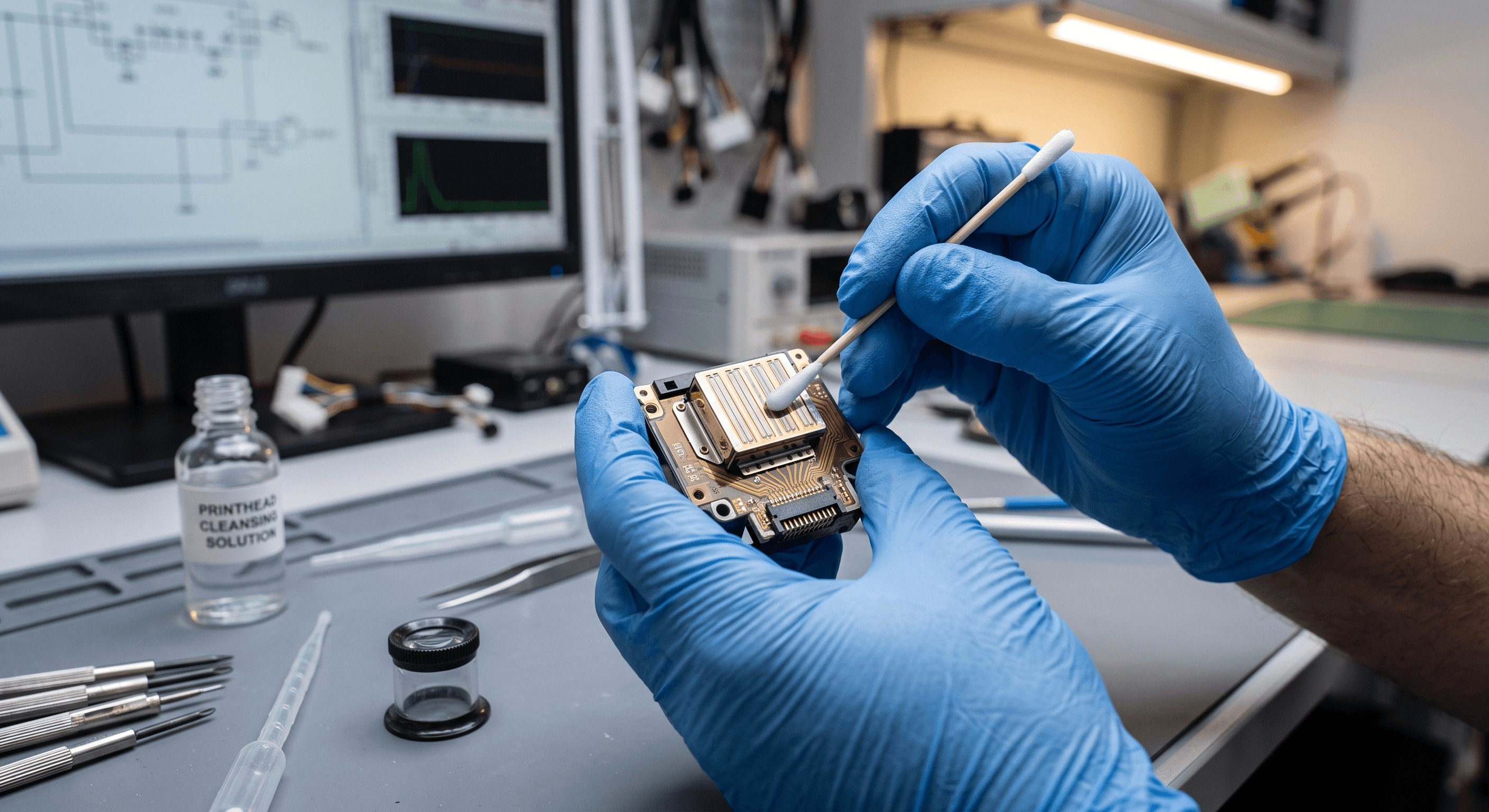
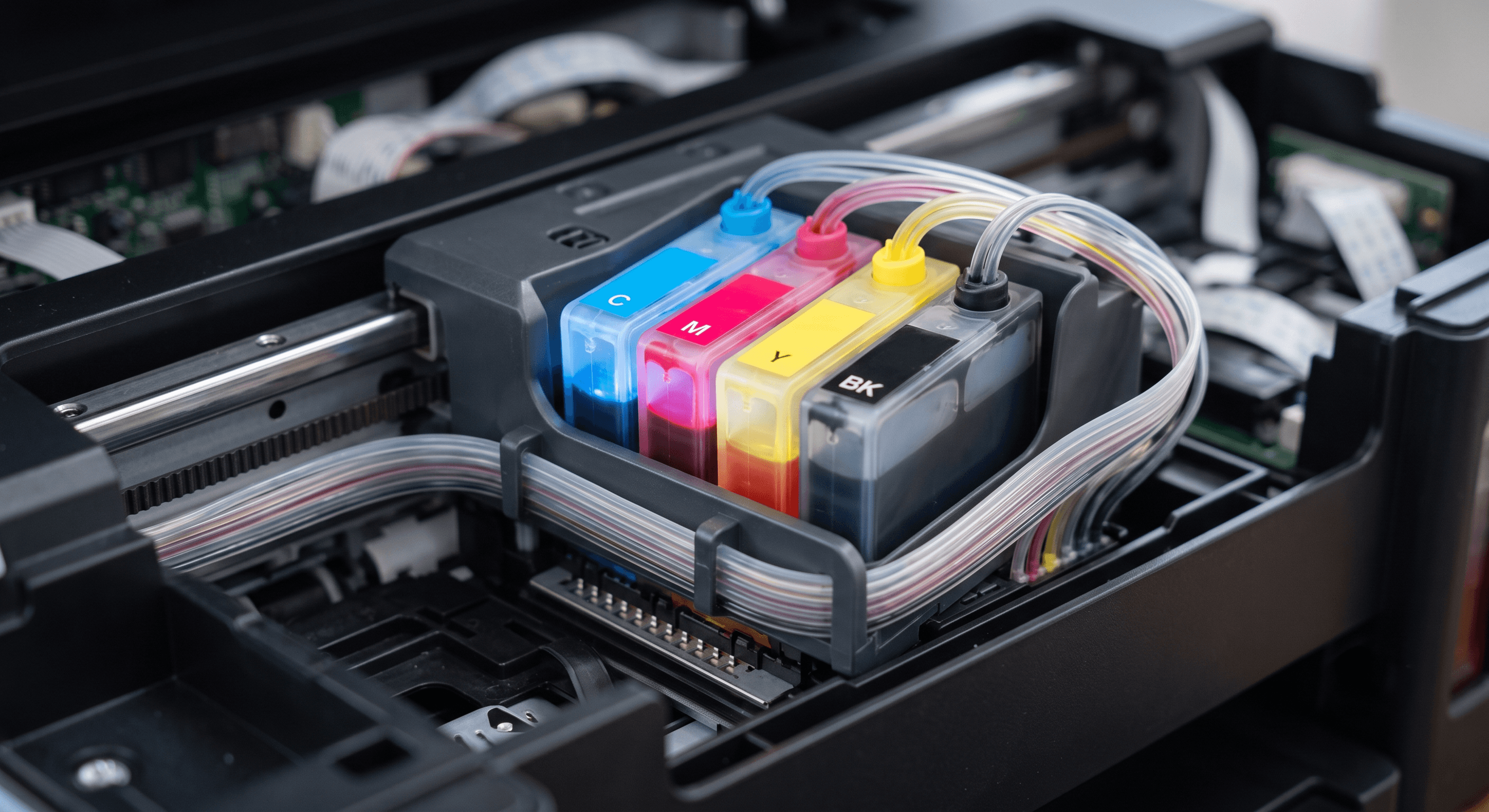
Before proceeding with motherboard firmware repair, make sure other hardware components (such as the printhead, power supply, and ink cartridges) are clean and in good working condition.
The Role of the Winbond EEPROM/Flash Memory Chip
The Winbond memory chip on the printer's mainboard acts as the BIOS of the printer. It stores crucial instructions and configurations required for the hardware to operate:
- Core Printer Firmware Data
- Configuration Settings and Models Details
- Hardware Initialization Sequences
- Printhead Alignment and Calibration Values
- System Error Logs
- Device Serial Numbers and Identification
If any of this critical information becomes corrupted, the printer will fail to boot correctly.
Required Tools for Fixing the B520 Error
To repair the firmware and fix the B520 error, you will need the following technical tools:
- BIOS / EEPROM Programmer (e.g., CH341A)
- SOIC8 Test Clip or Chip Adapter
- Original Canon Firmware BIN File
- Soldering Iron and Tools (if desoldering is required)
- Replacement Winbond Serial Flash Memory Chip (IC)
- A computer running programmer software
Using the correct verified BIN file for your exact printer model is crucial. Flashing the wrong model's firmware can permanently brick the motherboard.
The original binary dump files we provide are:
- Tested and verified firmware images.
- Corruption-free binary dumps.
- Organized logically by printer model.
- Ready for instant flashing/programming.
Original Firmware Dumps vs. Pre-Programmed Chips
For technicians and DIY repair enthusiasts, we offer verified original firmware dump files (BIN files) for various Canon models, ready to download and write. If you do not own an EEPROM programmer or want to save time, you can purchase pre-programmed Winbond memory chips directly from us. By simply desoldering the old chip and soldering our pre-programmed chip in place, you can repair the motherboard in minutes without any programming tools.
Step-by-Step Reprogramming Process
Step 1: Locate the Memory Chip
Find the Winbond Flash IC on the printer motherboard (typically an SOIC8 8-pin package).
Step 2: Backup Existing Data
Connect the programmer and read the chip to save a backup copy of the current corrupt firmware image before flashing.
Step 3: Load the Verified BIN File
Load the verified original BIN file corresponding to your exact Canon printer model in the programmer software.
Step 4: Erase the Chip
Perform an erase operation to wipe the old, corrupted data from the memory chip.
Step 5: Write the New Firmware
Write (program) the loaded BIN file onto the Winbond memory chip. Keep the programmer connected until finished.
Step 6: Verify the Write
Perform a verification check to ensure the data was written correctly and matches the source BIN file.
Step 7: Reassemble and Test
Reinstall the chip onto the motherboard, reassemble the printer, and turn it on to test.
Expected Results After Successful Repair
Once the Winbond chip is correctly reprogrammed and verified, the printer behavior should restore as follows:
- The B520 error code is cleared.
- The printer boots normally and completes initialization.
- Standard printing functions are fully restored.
- Diagnostic error lights stop flashing.
Alternative: Using Pre-Programmed Chips
If you prefer to avoid the programming steps altogether, you can order a pre-programmed chip from us:
- Remove the old Winbond chip from the motherboard.
- Install the pre-programmed chip with verified firmware.
- Power on the printer to test.
Conclusion
The B520 error code is primarily a motherboard firmware issue related to data corruption within the Winbond memory chip. Reprogramming this chip with a verified original dump file or replacing it with a pre-programmed IC will resolve the error and restore your printer to service. Always backup the old data before flashing, and use the exact matching BIN file for your printer model.