


Laptop technology is constantly evolving, and one keyword that you will frequently hear when discussing computer performance is "RAM" (Random Access Memory). Often referred to as temporary memory, RAM is one of the most critical hardware components that determines how fast and efficiently your computer handles daily operations.
In this article, we will explain what laptop computer RAM is, how it affects your experience, and how to choose the right capacity and speed for your requirements.
What is a Laptop RAM Card (Random Access Memory)?
RAM stands for Random Access Memory, and it serves as your computer's high-speed temporary workspace. When your laptop is working, all of the active tasks you perform—such as web browsing, streaming media, editing documents, or running software applications—are loaded into RAM so the processor can access them instantly.
Think of RAM as a desk where you keep files you are actively working on. The larger the desk, the more documents you can lay out and work on simultaneously. However, unlike your hard drive or SSD, RAM is volatile memory. Once you turn off your laptop, all data stored in RAM is cleared. This is why it is called temporary memory.
Why is RAM Essential for a Laptop?
RAM directly influences your computer's responsiveness. Here are the primary reasons why having adequate memory is vital:
- Multitasking: Helps run multiple applications simultaneously without slowing down the PC.
- Speed: Reduces the time the CPU takes to fetch data from the slow storage drive (HDD or SSD), making overall system operations faster.
- Gaming and Editing: Provides the large memory buffer required for heavy tasks like rendering high-definition videos and loading complex game assets.
Laptop RAM vs. Desktop RAM
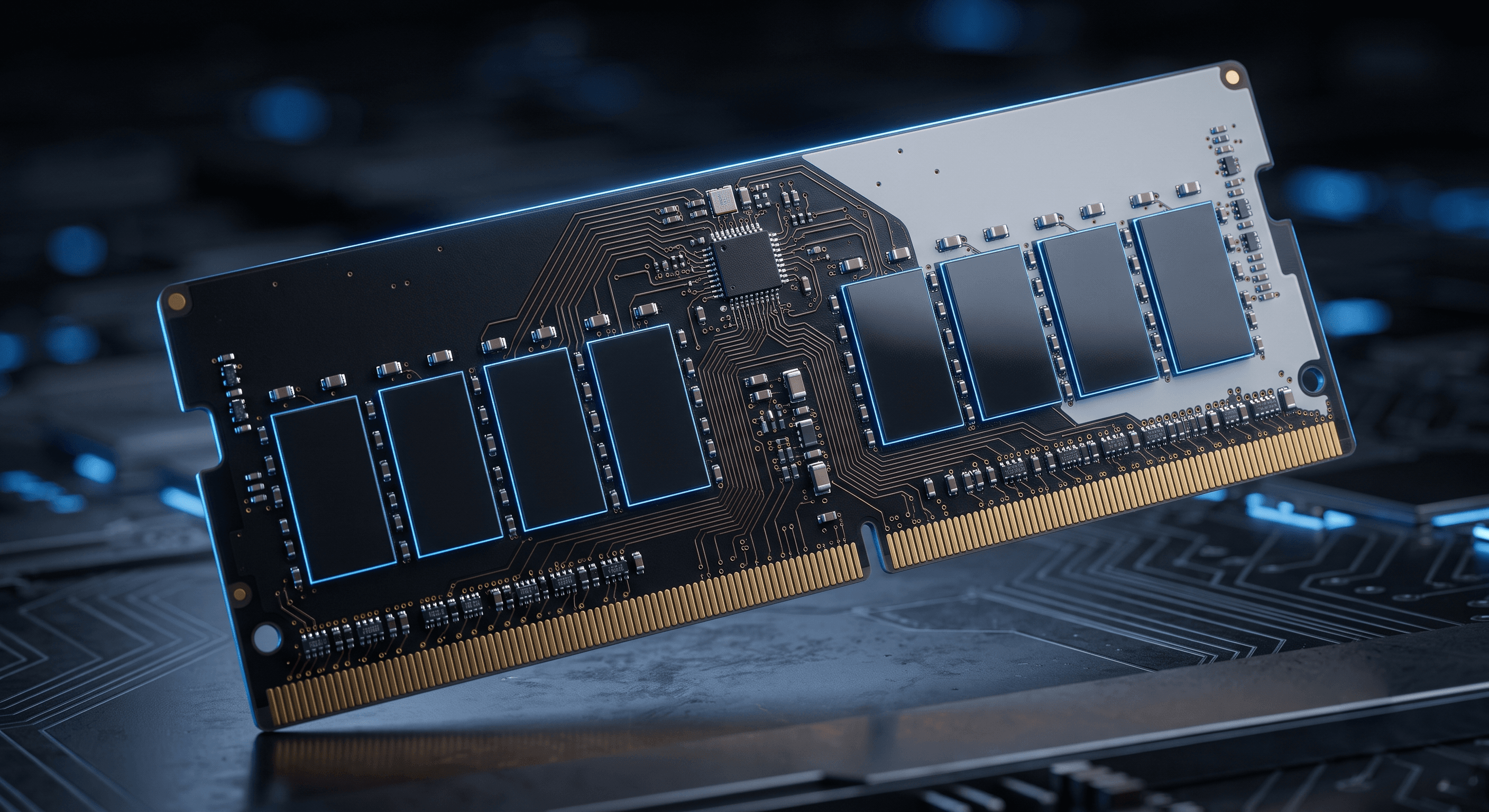
While laptop RAM and desktop RAM serve the exact same purpose, they are not physically identical. Laptops use a smaller form factor designed to fit within the constrained interior space of portable computers, whereas desktop motherboards utilize longer memory sticks.
Choosing the Right RAM Capacity
RAM modules are available in various storage capacities. You should choose your capacity based on the tasks you run daily:
- 4GB: Suitable for basic tasks like internet browsing, simple document editing, and movie watching.
- 8GB: The modern baseline standard. Ideal for student workloads, office tasks, and casual multitasking.
- 16GB: Highly recommended for gaming, software development, and photo/video editing.
- 32GB or more: Reserved for extreme technical workloads, heavy 3D design, and virtualization.
How RAM Works with the CPU
Every time you launch a program, open a file, or stream a video, the processor retrieves the necessary data from your storage drive and loads it into the high-speed RAM. The CPU then reads instructions from the RAM to execute them in real-time, giving you a smooth, lag-free experience.
Because RAM is significantly faster than permanent storage drives (HDDs and SSDs), it prevents the processor from bottlenecks. If your RAM capacity is too low, the CPU is forced to wait for data to be swapped in and out of the hard drive, resulting in system lag and spinning load cursors.
Having a larger memory buffer enables your system to hold more data ready for the CPU, facilitating smooth transitions between multiple heavy tasks and allowing complex software applications to run smoothly.
Key Performance Factors Influenced by RAM
Having sufficient RAM impacts several key aspects of your computer's day-to-day operations:
1. Processor Efficiency
High-speed RAM feeds data to the processor at extremely fast rates. Without enough RAM space, the processor must frequently access the slower main storage drive (HDD/SSD) to load data, causing a noticeable drop in performance.
2. Seamless Multitasking
When you have dozens of browser tabs open while listening to music and typing a report, RAM holds all these active processes. The more RAM you have, the more tasks your system can run simultaneously without freezing.
3. Faster App Loading Times
Applications and files that you use frequently load much faster because their core data is cached in the system RAM, reducing the time it takes to launch them.
4. High-Performance Gaming and Rendering
Modern games and editing applications process massive amounts of texture and coordinate data in real-time. If your RAM capacity is too small, games will experience frame drops (stuttering) and editing software may crash during rendering.
5. Smooth Web Browsing
Web browsers like Google Chrome and Microsoft Edge are notorious memory hogs. Ample RAM allows you to switch between multiple active tabs instantly without pages needing to refresh or reload from scratch.
5 Signs That Your Laptop Needs a RAM Upgrade
If you experience any of the following symptoms during daily use, it is a clear sign that your laptop is running low on RAM and could benefit from an upgrade:
1. Computer Freezing or Lagging
Your laptop hangs or stutters when you open several applications at once, or the mouse cursor moves erratically on the screen.
2. Frequent Webpage Reloads
When switching between open browser tabs, the pages frequently reload or refresh from scratch because the system did not have enough RAM to keep them active in the background.
3. Sudden Software and App Crashes
Heavy applications (such as Photoshop or video editors) close abruptly without warning, which happens when the program requests more memory space than the system can allocate.
4. Typing Delay and Input Lag
There is a noticeable delay between typing on your keyboard and the letters appearing on the screen because the system is struggling to allocate memory to process the input.
5. Receiving "Low Memory" System Warnings
The operating system displays an explicit warning message on the screen stating that "Your computer is low on memory," prompting you to close applications.
How to Check Your RAM Usage on Windows
You can easily check how much RAM is currently being used on your Windows computer without installing any third-party tools:
- Press Ctrl + Shift + Esc to open the Task Manager.
- Go to the Performance tab and click on Memory.
- Here, you can see the percentage of RAM currently in use. If it regularly exceeds 80% under standard tasks, it is time for an upgrade.
Understanding the Different Types of RAM
Over the years, system memory technology has advanced, leading to different form factors and generations of RAM:
1. Physical Form Factors: DIMM vs. SO-DIMM
Memory modules are classified by size depending on the device they are meant for:
- DIMM (Desktop RAM): Long memory modules designed exclusively for desktop computer motherboards.
- SO-DIMM (Laptop RAM): Compact memory modules (about 50% smaller than DIMM) designed for laptops, mini PCs, and compact devices.
2. DDR Generations: DDR3, DDR4, and DDR5
Modern computers use DDR (Double Data Rate) technology, which has evolved through several generations, each bringing faster speeds and lower power consumption:
- DDR3: Legacy technology. Found in older laptops built before 2014. Consumes more voltage at lower speeds.
- DDR4: Currently the most widely used memory type. Offers high stability, good speeds, and power efficiency.
- DDR5: The latest and fastest memory standard. Found in modern high-end laptops, featuring extremely high data transfer rates.
Note: RAM generations are not cross-compatible. A laptop designed for DDR3 cannot accept a DDR4 RAM stick because the physical key notches are aligned differently.
3. Technical Types: SRAM vs. DRAM
From an engineering perspective, there are two primary categories of RAM:
- DRAM (Dynamic RAM): The standard system memory used for general storage in PCs. It needs to be refreshed periodically with electricity to retain data.
- SRAM (Static RAM): Faster and more expensive memory. It is primarily used as the CPU cache to store instructions close to the processor.
4. VRAM (Video RAM / Graphics RAM)
VRAM is dedicated memory used exclusively by the graphics processing unit (GPU) to store image frames and 3D textures, which is essential for smooth video rendering and high-end PC gaming.